This article contains the following information:
Overview
The site administrator will need to do the following for each instructor each semester:
- Create Goals
- Make a copy of the master goal (& rename the new goal)
- You will need a goal for each group of students
- Each instructor will need at least 1 goal for each semester: you can create multiple goals if the instructor has multiple groups of students (ex: class sections) they would like the ability to separate in the reports
- Make a copy of the master goal (& rename the new goal)
- Manage Instructor Accounts
- Create instructor's account (if they don't already have one)
- Assign the new goal to the instructor's account
Instructions on how to complete these tasks can be found in THIS FILE and have also been outlined below:
Create Goals
- From your Reports Dashboard, click on the Edit EdReady Version button
- Click on the Goals tab
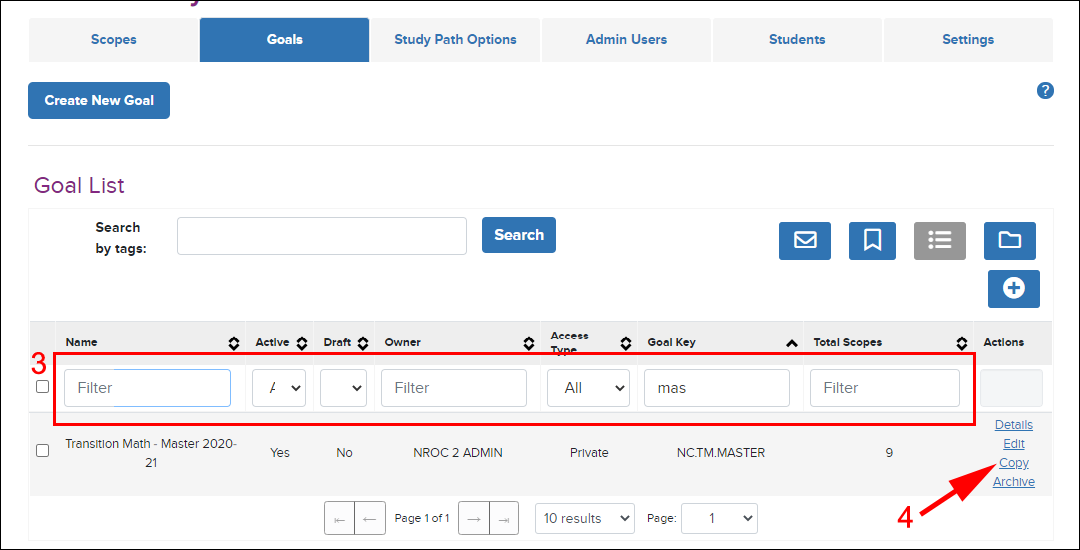
- Use the Filter row to help you easily find the existing goal you want to copy.
The master goal copied into your site has the following goal key: NC.TM.MASTER - Click the Copy link to copy the selected goal
- You will automatically be taken to a page where you can edit your new goal
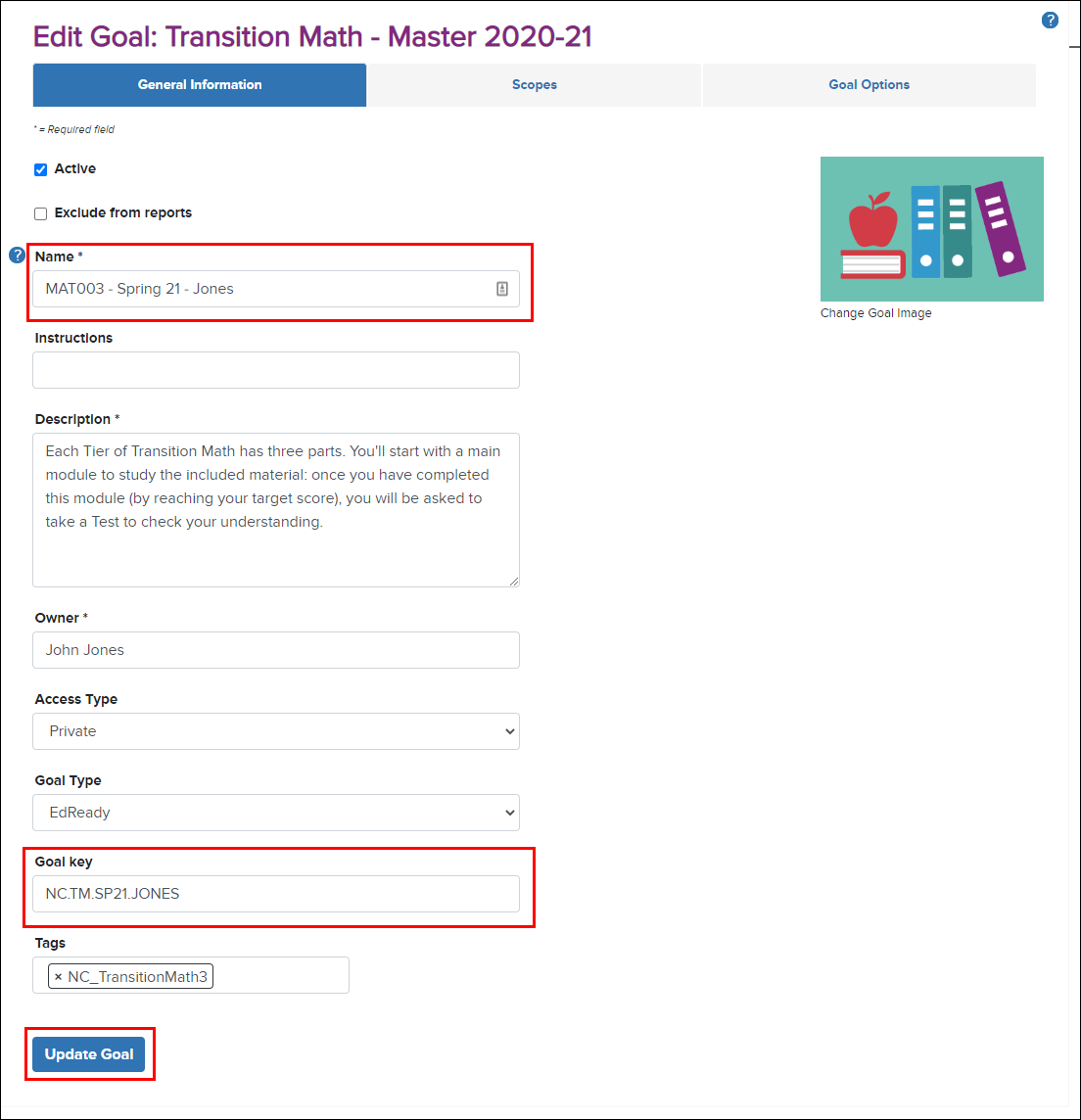
- The basic goal settings will be copied (image, description, associated scope, and messaging), so you only need to edit the Name and Goal key (both need to be unique)
- We recommend that you Name your goals descriptively to include the semester and instructor name. This will make it easier to understand the students/ instructor associated with this goal in the reports and the administrative pages.
For example: MAT003 Spring 2021 - Jones
- We recommend that you Name your goals descriptively to include the semester and instructor name. This will make it easier to understand the students/ instructor associated with this goal in the reports and the administrative pages.
- After you have completed your edits, click the Update Goal button to save your changes
(Click Goals in the breadcrumbs at the top of the page to return to the main Goals tab.)
Repeat steps 3-8 for each Transition Math goal you need to create.
Instructor Accounts
Follow these steps to give Transition Math instructors access to EdReady & the ability to see their students in the reports.
- Log in to EdReady, then click the Edit EdReady Version button
- Click on the Admin Users tab:
The table on this page will list all existing Admin User (non-student) accounts in your site. You can use the filter/ sort functionality to find an individual’s account. (If the user already exists, click the Edit link to view/ update an existing account and start on step 8 below.)
Create User Account
- Click on the Create New Admin User button at the top of the page
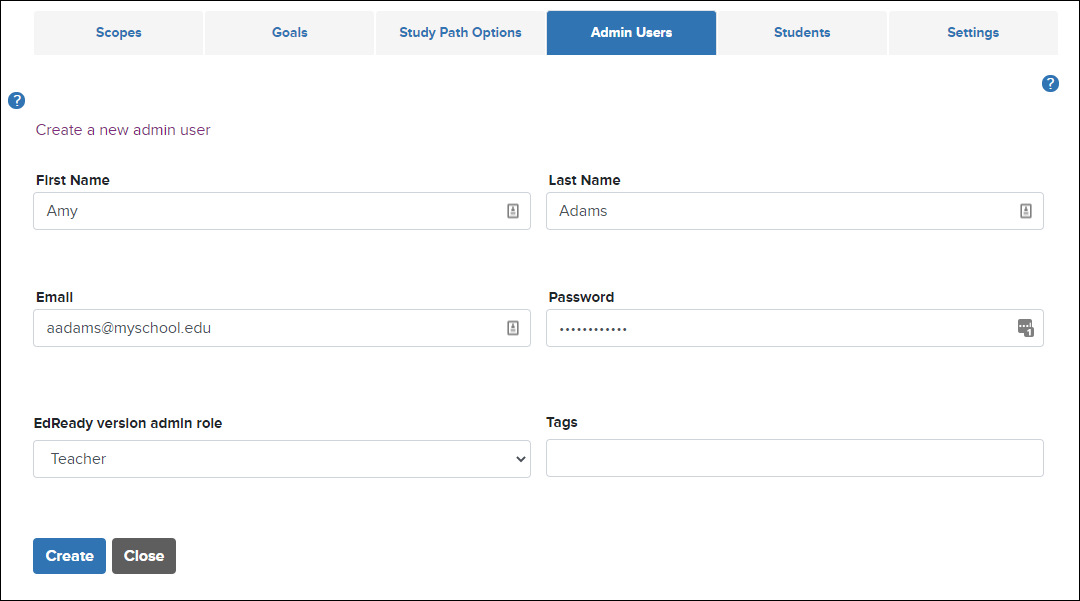
- Enter the user’s Name, Email address, and initial Password
- Select “Teacher” for the EdReady Version Admin Role dropdown
- Click the Create button
NOTE: If you receive an on-screen message that the user already has an account, use the Help button or submit a support ticket to reach out to the EdReady team. We will need to delete the student account associated with this email address before you can create their teacher account
The user will automatically receive an email with the URL of your EdReady site, their username, and initial password. They will be prompted to reset their password when they first log in.
IMPORTANT: any goals you assign are NOT automatically communicated via EdReady – you will need to share those details with your instructors separately.
- After creating the user’s account, you will be taken to their Permissions tab. Ensure that your users have only the following settings applied:
- Reports Access:
- All options except for Admin Data / Session Details
- Manage Students
- Access Student Session Report
- Reports Access:
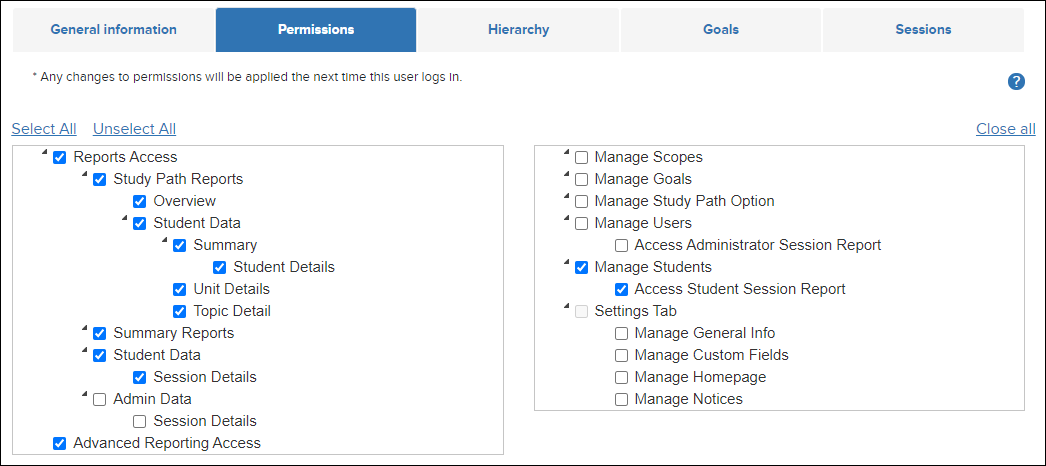
You don’t need to save this page: changes are applied automatically
Update Goal Assignments
- While still editing the user's account, click on their Goals tab
- The top table will list any Goals the user is already associated with. Scroll down to the Available Goals table
- Find the goal you created for this instructor and click the Add link: this will move the Goal to the ‘Assigned Goals’ table at the top of the page.
- If the instructor has more than one goal, be sure to click Add for each one individually.
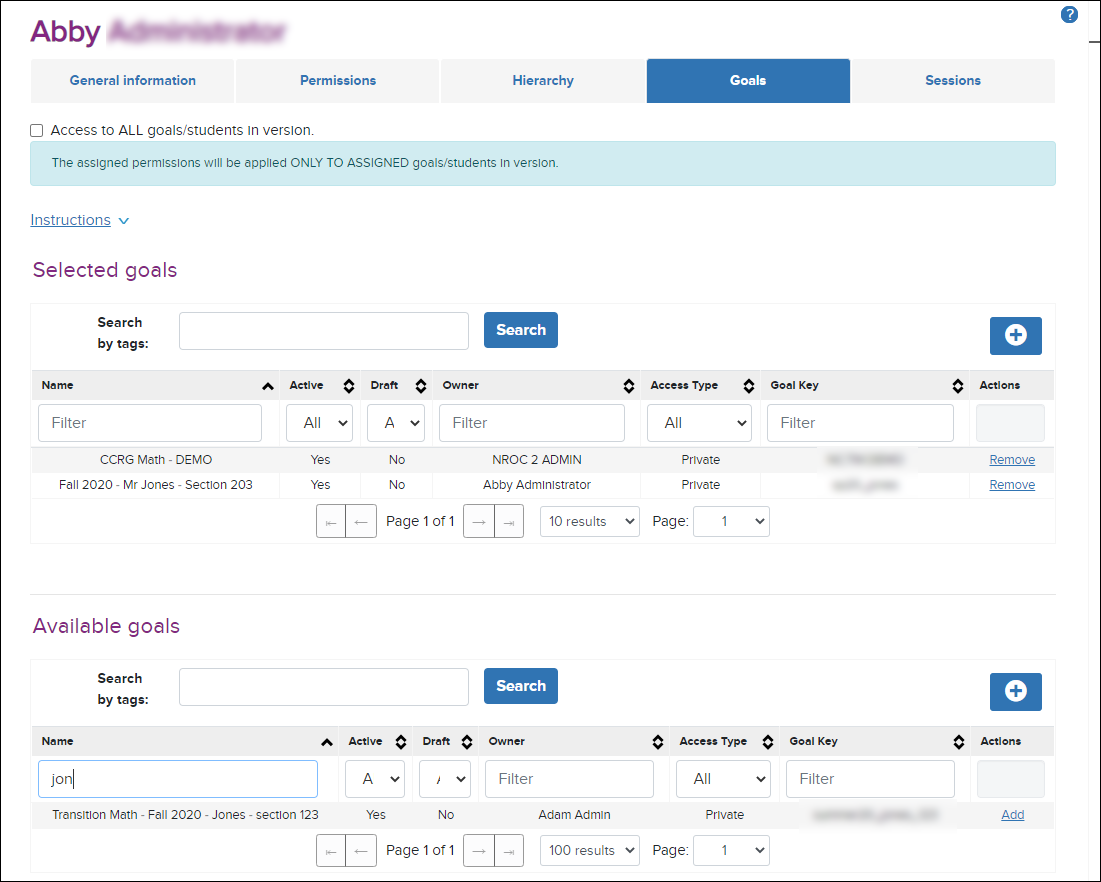
Note: if this instructor previously taught Transition Math, you may see the goals from past semester(s) in the top ‘Assigned Goals’ table. You can Remove these goals to remove the associated students from the instructor’s view in the reports.
Next Steps: the goals a user can see in the reports & their students will use are not automatically communicated via EdReady – you will need to share those details with your instructors separately.